
Introduction
If your iPhone 14 screen is cracked, not responding to touch, or not showing a picture when your phone is powered on, use this guide to restore your iPhone to working order with a new screen, a.k.a. display assembly.
This guide was created using the A2882 (international) model. If you're fixing a different iPhone 14 model, there may be some visual discrepancies, but the procedure should be the same.
Note: True Tone and auto brightness functionality are disabled after a screen replacement, even when using an original Apple screen. Face ID is also disabled unless the iPhone runs iOS 15.2 or newer.
You’ll need replacement adhesive to reattach the screen when reassembling the device. Your device will function normally, but will most likely lose its IP (Ingress Protection) rating.


-
-
Power off your iPhone before beginning disassembly.
-
Remove the two 6.8 mm-long pentalobe P2 screws at the bottom edge of the iPhone.
-
-
-
Apply a heated iOpener to the bottom edge of the screen to loosen the adhesive underneath. Apply the iOpener for at least 2 minutes.
-
-
-
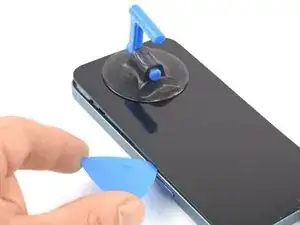
Apply a suction handle to the bottom edge of the phone, while avoiding the very edge of the glass.
-
Pull up on the suction handle with firm, constant pressure to create a slight gap between the front panel and rear case.
-
Insert an opening pick into the gap.
-
-
-
Apply a heated iOpener to the left edge of the screen to loosen the adhesive underneath. Apply the iOpener for at least 2 minutes.
-
-
-
Slide the opening pick around the lower left corner and up the left edge of the iPhone to slice through the screen adhesive.
-
-
-
Apply a heated iOpener to the right edge of the screen to loosen the adhesive underneath. Apply the iOpener for at least 2 minutes.
-
-
-
Re-insert your pick at the bottom edge of the iPhone, and slide it up the right side to continue separating the adhesive.
-
-
-
Apply a heated iOpener to the top edge of the screen to loosen the adhesive underneath. Apply the iOpener for at least 2 minutes.
-
-
-
Insert your pick underneath the top right edge of the phone. Slide it around the top-right corner and half way across the top edge stopping right before the earpiece speaker cut-out.
-
-
-
Insert your pick underneath the top-left edge of the phone. Slide it around the top-left corner and half way across the top edge stopping right before the earpiece speaker cut-out.
-
-
-
Remove your suction handle from the screen.
-
Open your iPhone by swinging the screen up from the right side, like the front cover of a book.
-
Lean the screen against something to keep it propped up while you're working on the phone.
-
-
-
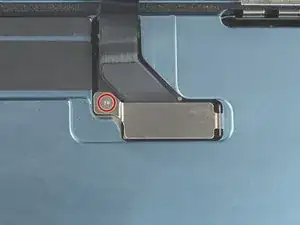
Use a Y000 screwdriver to remove the 0.9 mm-long screw securing the display connector bracket.
-
-
-
Grasp the screw hole end of the connector bracket with a pair of tweezers.
-
Lift the the bracket slightly to loosen the latch on the other edge.
-
Remove the display connector bracket.
-
-
-
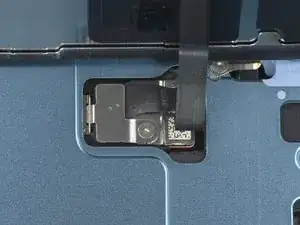
Use the pointed end of a spudger to disconnect the display cable by prying the connector straight up from its socket.
-
-
-
Use a Y000 screwdriver to remove the 0.9 mm-long screw securing the front sensor connector bracket.
-
-
-
Grasp the screw hole end of the connector bracket with a pair of tweezers.
-
Lift the the bracket slightly to loosen the latch on the other edge.
-
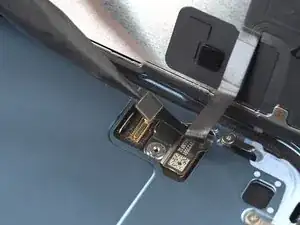
Remove the front sensor connector bracket.
-
-
-
Use the pointed end of a spudger to disconnect the front sensor cable by prying the connector straight up from its socket.
-










If possible, turn on your device and test your repair before installing new adhesive and resealing.
To reassemble your device, follow these instructions in reverse order.
The best way to secure the new screen is to apply a sheet of custom-cut double-sided tape to the frame and place the screen back in its original position.
Take your e-waste to an R2 or e-Stewards certified recycler.
Repair didn’t go as planned? Try some basic troubleshooting, or ask our Answers community for help.

2 comments
great and good job
Is there still a software lock that disables face id / auto brightness?