
Introduction
Use this guide to replace or clean the analog sticks on the Dualshock 4 controller.


-
-
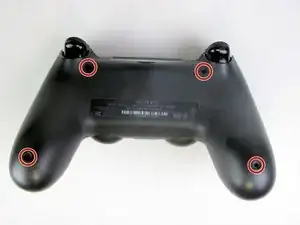
Using the Phillips #00 Screwdriver, remove the four 6.0 mm screws securing the rear cover to the controller.
-
-
-
Beginning with the left handle:
-
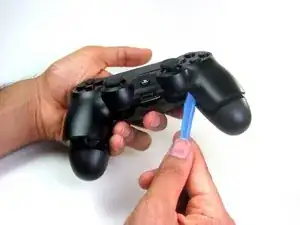
Pinch the left handle of the controller to introduce an opening.
-
Wedge a plastic opening tool into the opening and slide it up towards the joystick.
-
Pull down on the plier to crack open the casing.
-
Repeat these steps for the right handle.
-
-
-
Wedge a plastic opening tool into the case-splittings and pull down to crack open the casing near the following buttons:
-
Share button
-
Options button
-
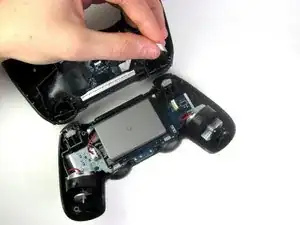
Split the plastic covers of the controller apart, taking note that they will still be attached by circuit board ribbons.
-
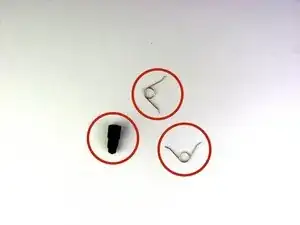
2 Trigger Springs
-
1 Grey Reset Button Extension
-
-
-
Detach the motherboard ribbon connecting the two sides of the controller by pulling it straight out with your fingers.
-
After the two halves are separated, place the top of the controller off to the side.
-
-
-
Using the blunt forceps, remove the battery plug by gently rocking the forceps side-by-side to loosen the plug.
-
After removal of the plug from the motherboard, the battery can be lifted off of the controller.
-
-
-
Remove the single 6.0 mm Phillips screw found below the battery retainer with the Phillips #00 Screwdriver.
-
-
-
Gently detach the touchpad ribbon connected to the motherboard using the blunt forceps. The touchpad ribbon is connected to the motherboard by a connector that flips to tighten and loosen. During reassembly, to reattach the ribbon, the plastic tray will need to be gently removed from the motherboard and the flip-lock flipped up.
-
-
-
Carefully dislodge the motherboard assembly from the front cover.
-
Vibration motors are loosely attached to the motherboard assembly. Provide support at the two ends to ease the separation.
-
-
-
Successful disassembly of the controller will result in the following three parts, respectively:
-
Motherboard Assembly
-
Front Cover
-
Rear Cover
-
-
-
Pull the analog stick covers straight off the joystick posts attached to the motherboard with your fingers.
-







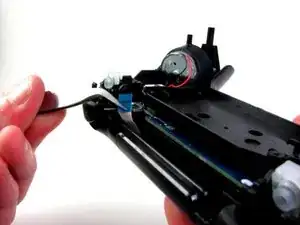


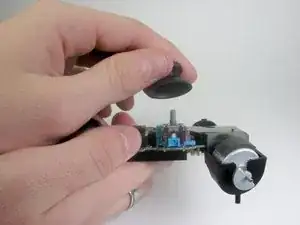

To reassemble your device, follow these instructions in reverse order.

14 comments
So I followed all the steps, got the sticks in. But when I put the controller back together it Wouldent turn on. Do you guys have any clue as to what it could be?
Same exact thing happened to me, just wouldn't turn back on
Me too and all the reconnected cables are connected correctly, but it just won’t work.
Andy Hui -
Hope you guys still keep the parts, since the problem can be resolved by following the post below successfully. :)
Andy Hui -
i think you didn't put a wire in
Does this fix the issue with worn out sticks? Mine currently at idle will get stuck slightly pressing to the left, (in game, I'll be cruising left at a snail's pace) and pressing up/forward or sometimes pressing to the right doesn't fully work (in game this causes me to either not move at all, or move at about 2/3rds speed).
I've had them for about two years now, and they have seen some rigorous use, I tell you what. It is beginning to affect gameplay pretty badly, though.
Yo usé un Phillips #000, ya que el #00 quedaba grande y podía dañar el tornillo.
Adolfo Gomez Toledo -
A plain #0 works way better for me
Jennica Tapia -